Derecho HPC Log-in and Setup
Tutorial practice exercises are tailored to work on the NSF NCAR’s Derecho HPC, which includes the libraries needed by WRF and its pre- and post-processing tools through modules.
Log-in
Important
If issues arise during this process, contact NCAR’S Help Desk for assistance. WRF Tutorial instructors do not have management access to HPC accounts and cannot assist with this.
Open a terminal window on your local system.
Note
Windows users unfamiliar with system configuration can find help in the Notes for Windows Users (though it’s AWS-specific, the information is generally helpful). Alternatively, consult a system administrator or IT staff at your institution.
Log-in to the Derecho HPC, using the below command applicable to your operating system. Replace user with your own username. Your username is the portion before “@ucar.edu” in your NCAR-Help-Desk-issued email address (this information is in the email from the NCAR Help Desk, regarding your DUO/CIT password).
Mac-OS
ssh -Y user@derecho.hpc.ucar.edu
Windows or Linux
ssh -X user@derecho.hpc.ucar.edu
Then press the enter/return key. You should see the following:
(user@derecho.hpc.ucar.edu) ncar-two-factor:
Enter your password (the one set up via the emailed instructions from the NCAR Help Desk). It won’t display as you type - this is normal. Press Enter/Return when done.
If you have the DUO app installed on your phone, you should receive a notification like the following:

Tap on the notification to open a screen similar to the following.
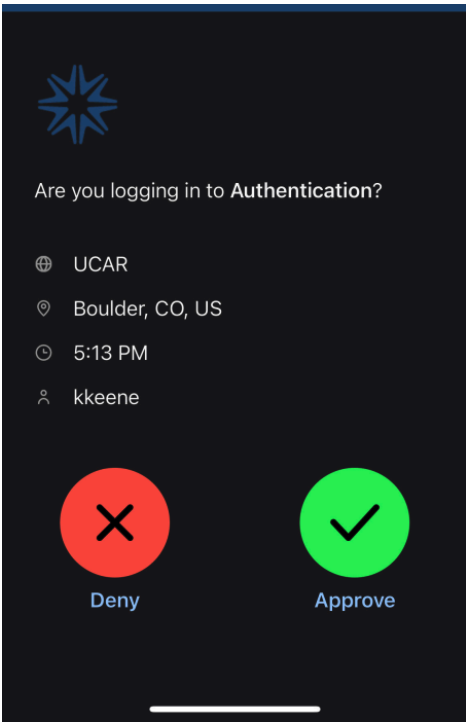
Tap “Approve,” and you should then be logged into the Derecho system.
Environment Set-up
When you log-in to Derecho, you’re placed in your home directory, /glade/u/home/$USER/, where $USER is your NCAR Help Desk log-in name). To ensure the exercises work properly, several environment settings must be configured beforehand. A .bashrc script containing the required settings is provided - copy it to your home directory.
From your home directory, create a copy of .bashrc using the following command (note the “.” at the end, telling the copy command to place the script “here”):
Note
Any command on this site included in a black code box is copyable. Hover over the right hand side of the box to reveal a “copy” icon, then click on that icon.
cp -r /glade/campaign/mmm/wmr/wrf_tutorial/.bashrc .
Source the .bashrc* script to implement its settings.
source .bashrc
Note
Now that .bashrc is in your home directory, each time you log-in to Derecho the settings will be automatically applied, so you don’t need to repeat this step at any point after this.
Set Up for Practice Exercises
All exercises are run in your scratch directory (/glade/derecho/scratch/$USER/). Unpack the practice_exercises folder in your working space to access the preconfigured directory structure for the exercises.
Move to your scratch/ directory
cd /glade/derecho/scratch/$USER
Unpack the practice_exercises.tar file in your current directory:
tar -xf /glade/campaign/mmm/wmr/wrf_tutorial/practice_exercises.tar
This may take several minutes. Once it completes, the command line prompt will reappear in your terminal window.
Move to the practice_exercises/ directory
cd practice_exercises
Issuing the
lscommand should reveal the following directories:troubleshooting_exercise/
Used specifically for a “Troubleshooting” exercise
wps/
For running all WPS processes (geogrid, ungrib, and metgrid)
wrf/
For running most of the WRF processes (real and wrf)
wrf_ideal_dm/
For running idealized cases built for distributed-memory processing
wrf_ideal_serial/
For running idealized cases built for serial processing
wrf_vortex/
Used specifically for the vortex-following exercise
Running Jobs
To run the WRF model, you’ll need to execute its programs. Derecho requires these jobs to be submitting to a batch queueing system, which allocates computing resources as they become available. You’ll use a script to submit these jobs. This tutorial guides you through the job submission process.
The following key commands are worth noting:
|
For submitting a job script that includes your job settings |
|
gives the status of your submitted job. You may need to wait 1 minute for your job to show up |
|
For deleting a queued or running job |
Useful Tools
Editors
The following editors are available on Derecho for editing scripts, namelists, etc.
vi |
only use if you are familiar with vi |
emacs |
only use if you are familiar with emacs |
gedit |
(recommended option) if you’re unfamiliar with vi or emacs; this option is only available if x-forwarding is installed. |
These editors use the command syntax <editor name> <file name>. For e.g.,
gedit namelist.input
Viewing PDF Files
To view a .pdf-formatted file on Derecho, use the following command:
display file.pdf
Note
This option is only available if x-forwarding is installed.
Comparing Files
To compare two text files (e.g., differences between two namelist files), use diff or xxdiff. xxdiff may be more viewer-friendly for numerous differences because it displays a side-by-side comparison. Both commands use the same syntax, e.g.,
xxdiff path-to-file/file path-to-file/file
Note
xxdiff is only available if x-forwarding is installed.
You are now ready to begin running the practice exercises!