Initial Exercise
This exercise outlines the fundamental steps and commands for running WRF, without requiring any setting changes - you’ll learn about that in the next exercise.
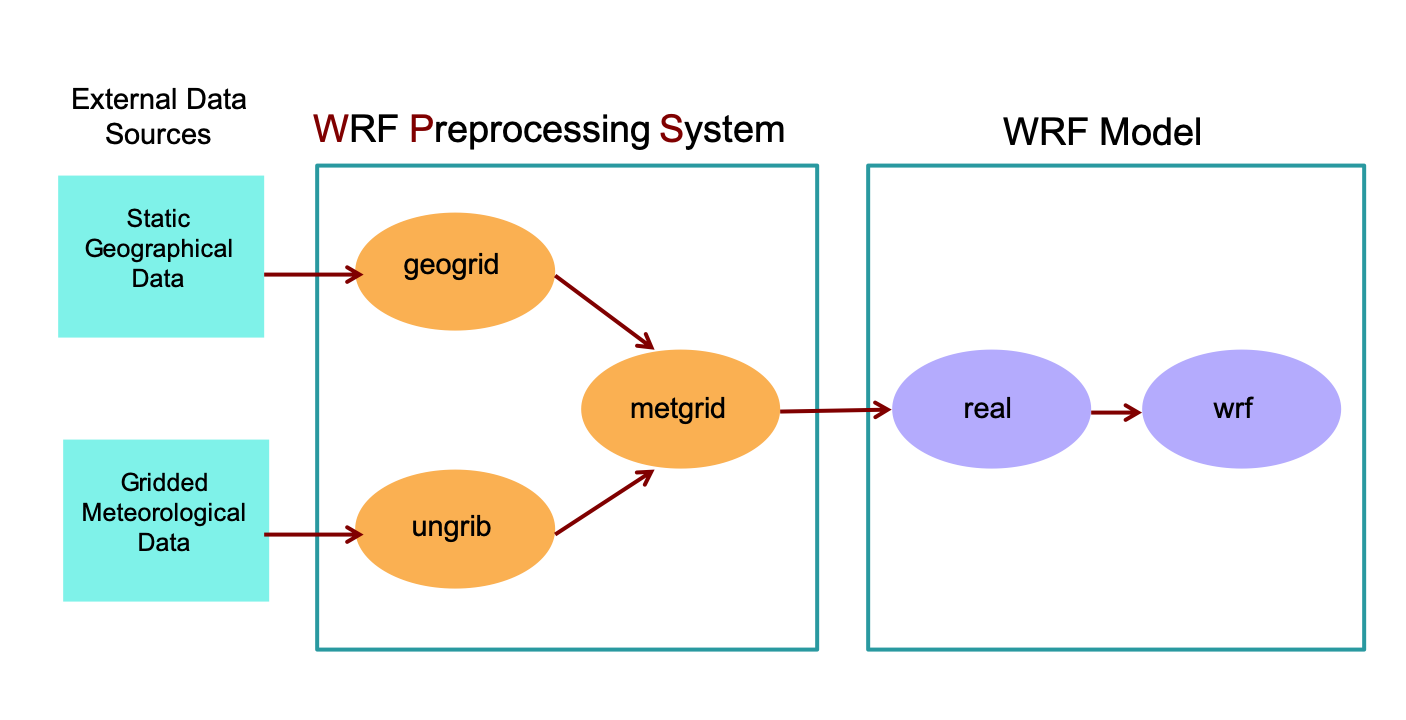
WRF execution is a five-step process across the following two main programs:
WPS
A set of three programs that preprocess static geographic fields and meteorological data to prepare input to the WRF model:
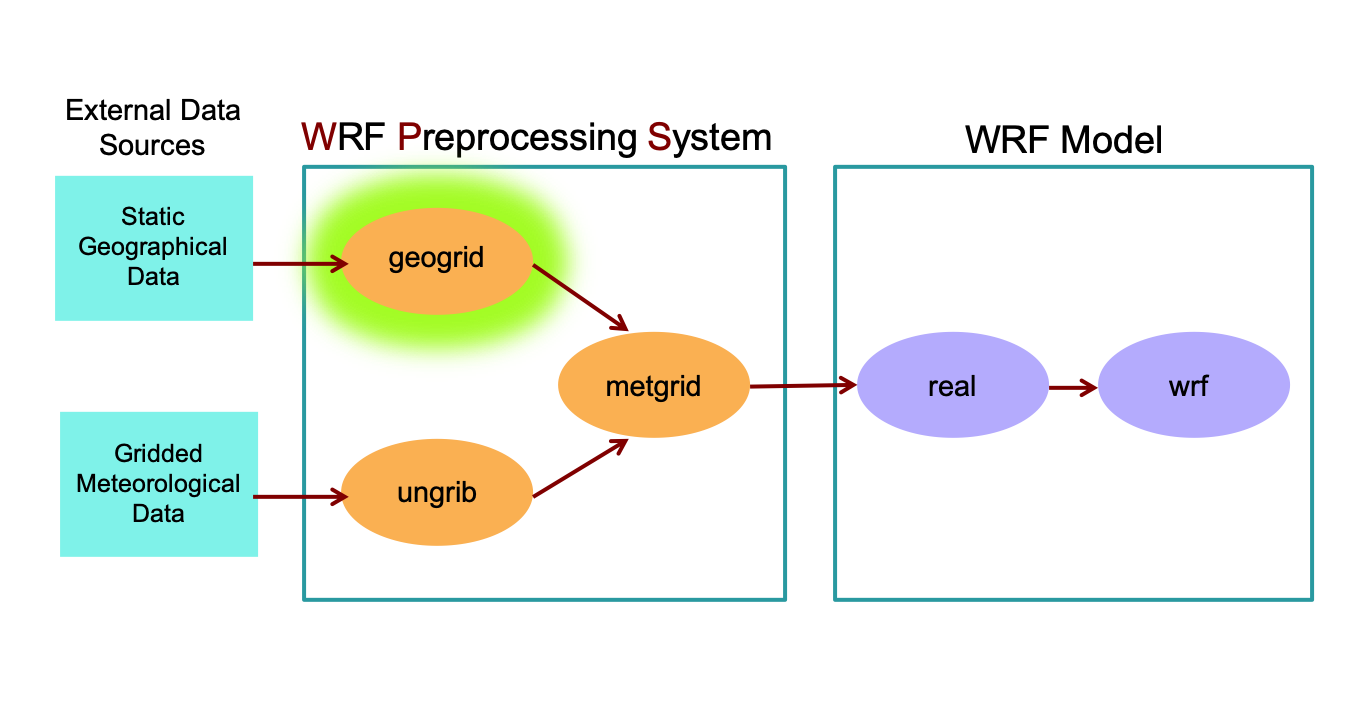
geogrid : defines the model domain and interpolates static geographical data to the grids
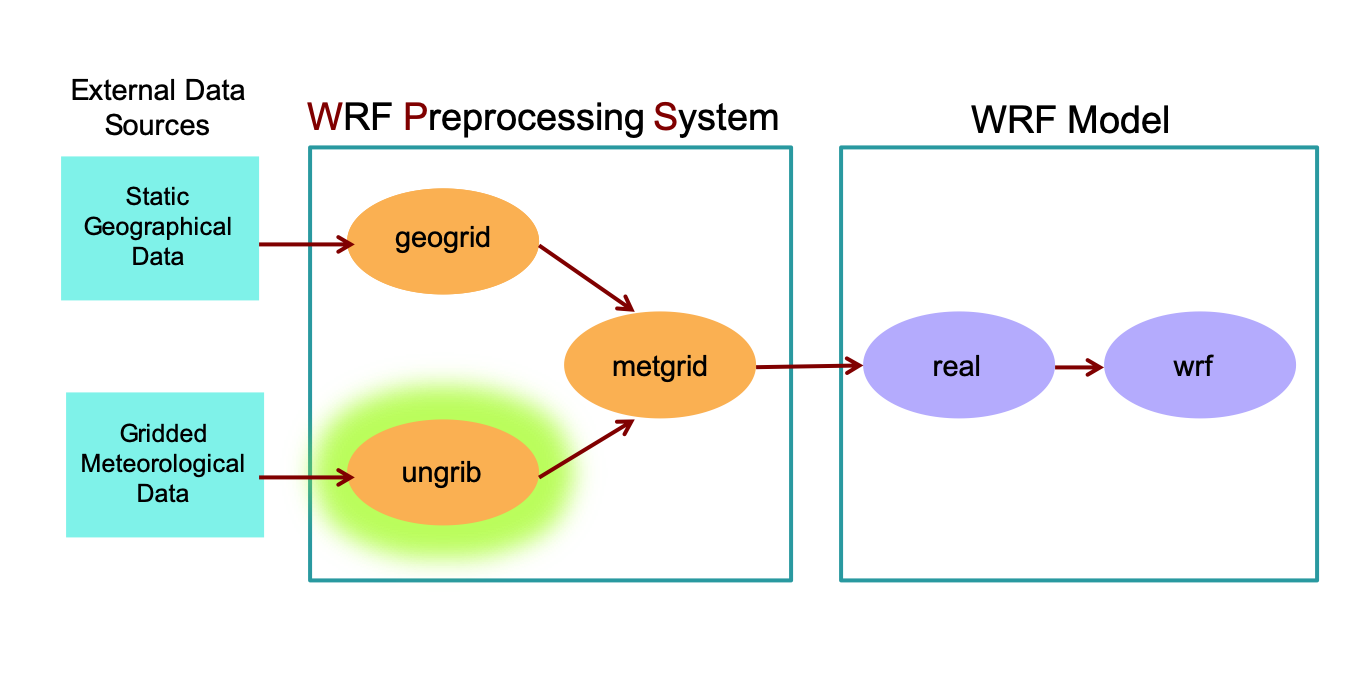
ungrib : extracts meteorological fields from GRIB-formatted input data files
metgrid : horizontally interpolates the meteorological fields extracted by ungrib to the model domain defined by geogrid
WRF
The primary modeling system, broken into two programs:
real : vertically interpolates the meteorological fields (from WPS) to WRF eta levels
wrf : simulates the model run, using all previously-defined settings for the domain, input data, vertical interpolation, physics, and dynamics settings
WPS: Geogrid
geogrid
A WPS program that defines the model domain’s map projection, geographic location, size, and resolution. It also interpolates static geographic data (e.g., topography height, landuse category) from an external source, onto this domain.
Run Geogrid
Navigate to the wps/ directory by issuing the following in your terminal window’s command line:
Note
Any command on this site included in a black code box is copyable. Hover over the right hand side of the box to reveal a “copy” icon, then click on that icon.
cd /glade/derecho/scratch/$USER/practice_exercises/wps
Typically you would need to modify the namelist.wps file for your specific case, but it has already been configured for this exercise.
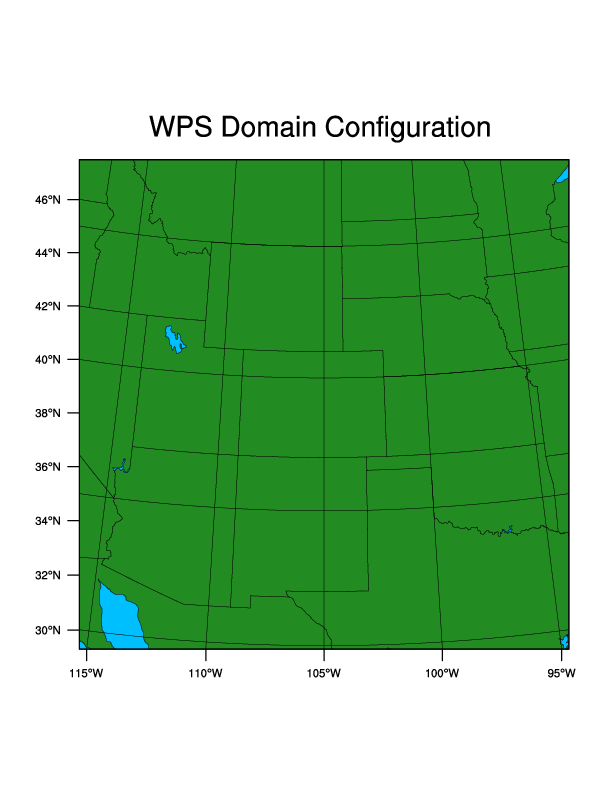
Before running geogrid.exe, preview the domain using the plotgrids_new.ncl NCL script, located in the wps/util/ directory.
Important
X–forwarding is required to view plots directly from Derecho.
WRF INSTRUCTORS CANNOT HELP WITH THIS INSTALLATION!
Contact your institution’s system administrator for assistance or see Visualization Without X-forwarding for alternatives.Issue the following command:
ncl util/plotgrids_new.ncl
Expect the following plot to appear on the screen, which may take several seconds. Click the image or use “ctrl-c” to close the window.
Now run geogrid.exe to configure the model grid.
./geogrid.exe
As geogrid processes, status updates are printed to the terminal, followed by Successful completion of geogrid when complete. Afterward, a listing of the directory (enter
lsin the terminal command line) should include the following new file:geo_em.d01.nc
WPS: Ungrib
ungrib
A WPS program that processes GRIB-formatted meteorological data, a commonly-used input format. Ungrib extracts the relevant meteorological fields from these files and outputs them in an intermediate format compatible with the metgrid program.
For this exercise you’ll simulate a blizzard that took place in northeast Colorado 13-14 March, 2021. It was ranked as the 4th largest snowstorm in Denver history, dropping 27.1 inches of snow in 24 hours.
The following describes the input data:
Type |
Global one-degree final analysis from the NCEP GFS model |
Interval |
Every 6 hours |
Initial Time |
2021-03-14_00:00:00 |
End Time |
2021-03-14_12:00:00 |
Data Directory |
/glade/campaign/mmm/wmr/wrf_tutorial/input_data/co_blizzard/ |
File Root |
fnl_20210314 |
Vtable |
Vtable.GFS |
Run Ungrib
Link the GRIB data to the current directory using the script link_grib.csh (located in the wps/ directory):
./link_grib.csh /glade/campaign/mmm/wmr/wrf_tutorial/input_data/co_blizzard/fnl_20210314
Run
lsto list the files in the wps/ directory, which should include the newly linked files (titled GRIBFILE.XXX - one for each data file/time period).GRIBFILE.AAA
GRIBFILE.AAA
GRIBFILE.AACLink the correct Vtable to the wps/ directory.
Vtables
Tables that define the fields to extract from GRIB files, decode the GRIB data, andassist ungrib.exe with converting the files to intermediate format.
Since input is from GFS, link the GFS Vtable (Vtable.GFS) to the wps/ directory and rename it to “Vtable” - the name expected by the ungrib program.
ln -sf ungrib/Variable_Tables/Vtable.GFS Vtable
Process the input data by running ungrib.exe. This is typically quick, but can take up to ~5 minutes.
./ungrib.exe
As ungrib processes, status updates are printed to the terminal, followed by Successful completion of ungrib when complete. Afterward, a listing of the directory (
ls) should include the following new files:FILE:2021-03-14_00
FILE:2021-03-14_06
FILE:2021-03-14_12The data are now in intermediate format and are ready for the metgrid.exe process.
WPS: Metgrid
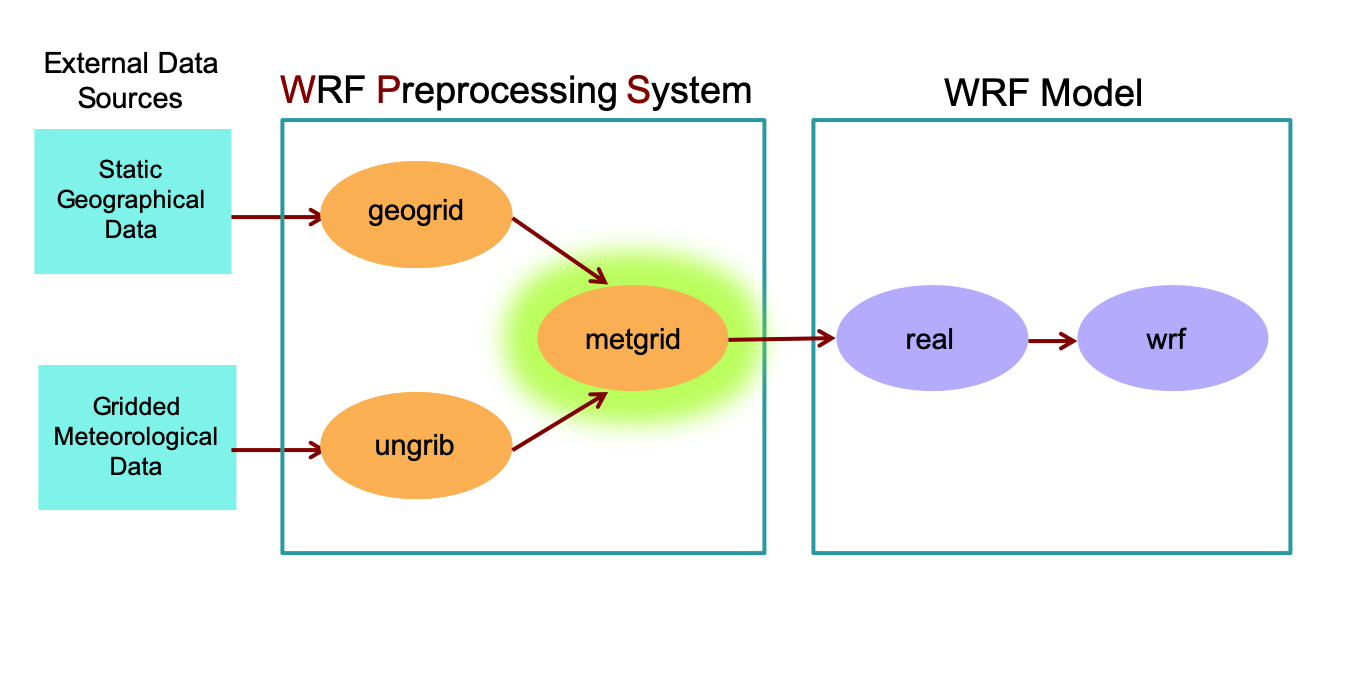
metgrid
A WPS program that horizontally interpolates meteorological data extracted by ungrib onto the simulation domain(s) defined by geogrid, creating input files required by real and wrf.
Run Metgrid
To run the metgrid program, type:
./metgrid.exe
As metgrid processes, status updates are printed to the terminal, followed by Successful completion of metgrid when complete. Afterward, a listing of the directory (ls) should include the following new files:
met_em.d01.2021-03-14_00:00:00.nc
met_em.d01.2021-03-14_06:00:00.nc
met_em.d01.2021-03-14_12:00:00.nc
Real Program
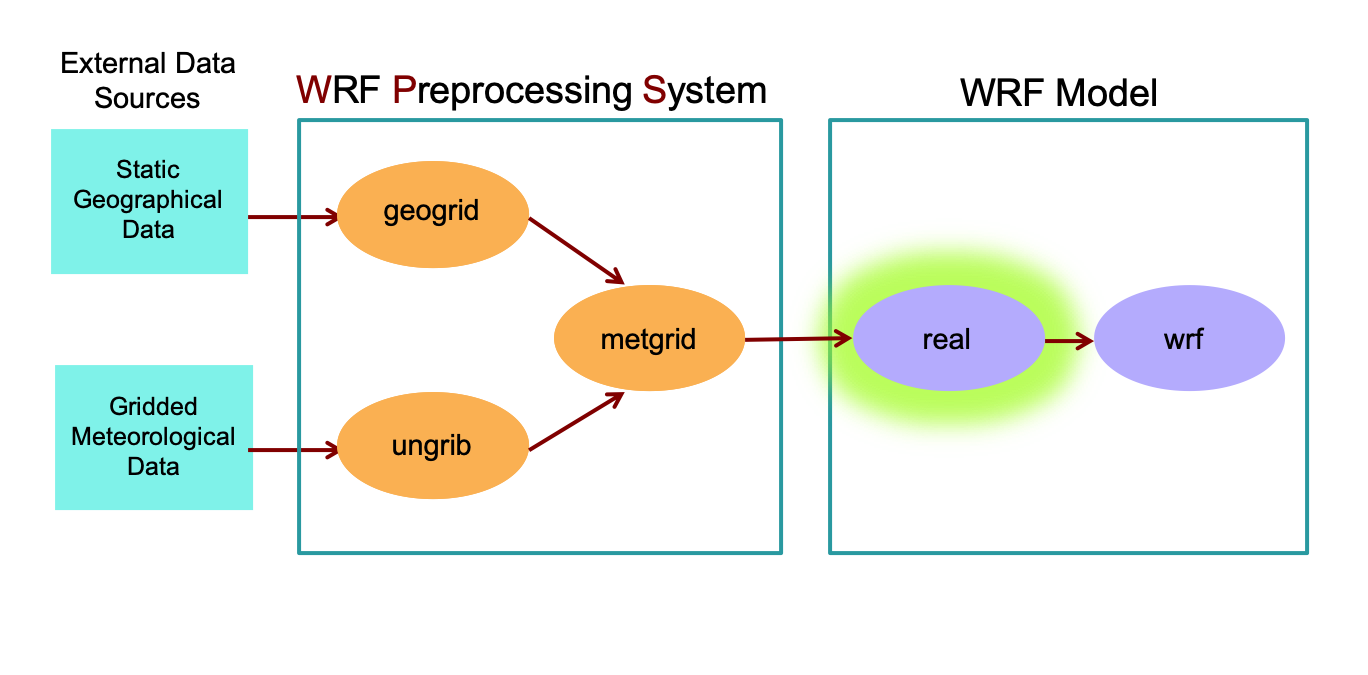
real
A WRF program that defines the WRF model vertical coordinate by vertically interpolating the horizontal meteorological data from WPS (met_em* files). This process creates the initial condition and lateral boundary files required to run WRF.
To run the real.exe and wrf.exe programs, move to the wrf/test/em_real directory. From the wps/ directory, type:
cd /glade/derecho/scratch/$USER/practice_exercises/wrf/test/em_real
Link metgrid output data files (met_em.*) from wps/ to the current directory. These files are used as input to the real.exe program.
ln -sf /glade/derecho/scratch/$USER/practice_exercises/wps/met_em* .
Typically, you’d modify the namelist.input file at this point to specify the domain, dates, physics options, etc. Since the namelist is already configured for this exercise, simply run the real.exe program, which uses the met_em* files to produce model initial condition and lateral boundary files.
Important
Unlike WPS, WRF was compiled for parallel computing (enabling the use of multiple processors). Because the NCAR HPC uses a queueing system, a batch script is required to queue and execute the model on the requested processors.
The real.exe batch script is called runreal.sh. Issue the following command:
qsub runreal.sh
Wait about one minute and then check the status of your request, using the following command:
qstat -u $USER
If the run is still queued or actively running
It will be displayed in the output from the above command, and will look similar to:Job ID Username Queue Jobname SessID NDS TSK Memory Time S Time --------------- -------- -------- ---------- ------ --- --- ------ ----- - ----- 1873233.desche* user cpu real -- 1 36 235gb 00:20 Q --
The “S” column above indicates the status, where the following definitions apply:
Q : the simulation is still sitting in the queue and hasn’t started running yet
R : the simulation is actively running
E : the simulation is finishing and will be done momentarily
When the run finishes successfully the following initial condition and boundary files should be in your directory:
wrfbdy_d01
wrfinput_d01If no output appears
Look for rsl.* files in your directory. If they exist, check the end of one of the files for the message SUCCESS COMPLETE REAL_EM INIT, indicating the program completed successfully.
tail rsl.out.0000
Run WRF
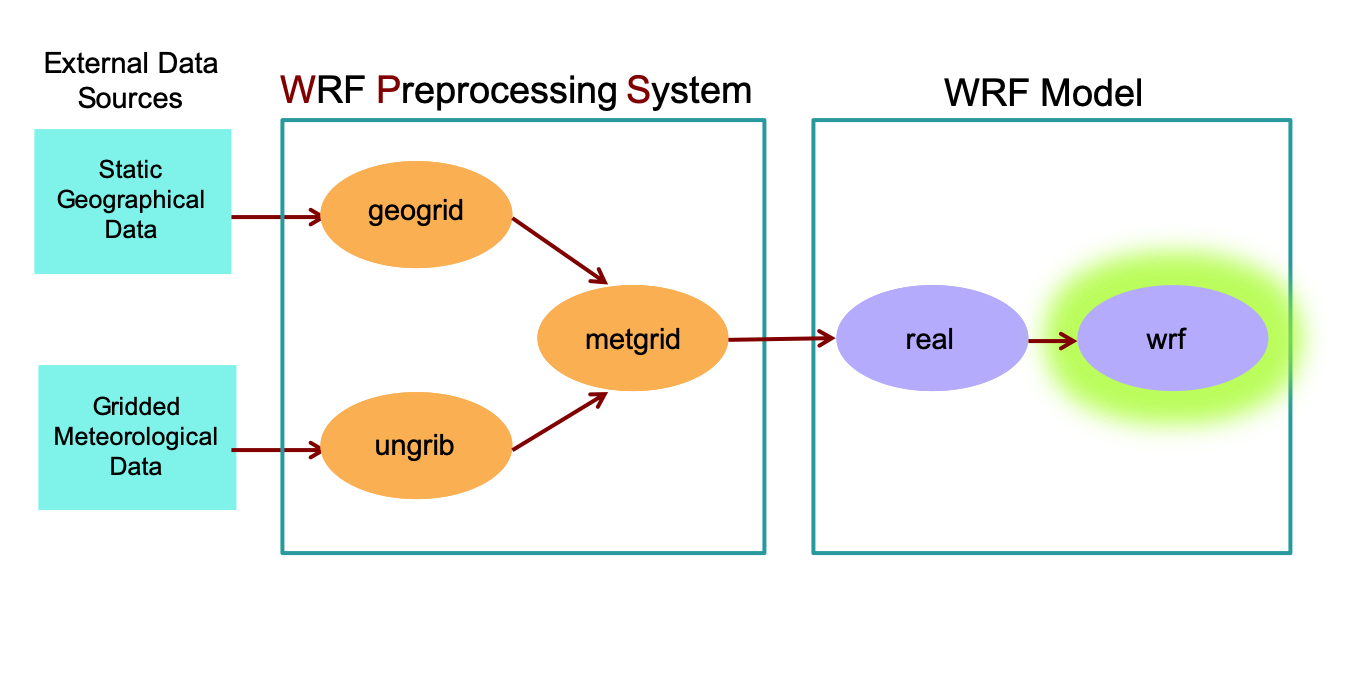
wrf
The WRF model uses the intitial and boundary condition files generated by the real program to perform model integration, using user-specified options provided in the namelist.input file (e.g., physics options).
To run wrf.exe, use the runwrf_initial.sh batch script, which queues and executes the wrf simulation.
qsub runwrf_initial.sh
Wait about one minute and then check the status of your request, using the qstat command:
qstat -u $USER
If the run is still queued or actively running, it will be displayed in the output.
If no output appears, look for rsl.* files in your directory.
If rsl.* files exist, check the end of one of the files for the message SUCCESS COMPLETE WRF, indicating a successful completion.
If successful, the following history files should be available in the running directory. Note that the namelist.input file was set to output every 3 hours:
wrfout_d01_2021-03-14_00:00:00
wrfout_d01_2021-03-14_03:00:00
wrfout_d01_2021-03-14_06:00:00
wrfout_d01_2021-03-14_09:00:00
wrfout_d01_2021-03-14_12:00:00
Check Your Output
If interested in viewing fields in the wrf output files, try the netCDF data browser ncview:
ncview wrfout_d01*
To quit ncview, use the keyboard command “ctrl-c”, or click on the “quit” button.
With the ncview window open, click on one of the variable boxes (1d vars, 2d vars, or 3d vars), and then choose a field to view. You can then click through different time periods and if the variables are in the 3d column, you can also look at each level.
Interesting fields to visualize with ncview
RAINC : Accumulated total cumulus precipitation (under the list of “3d vars”)
RAINNC : Accumulated total grid scale precipitation (3d)
SNOWC : Snow coverage (3d)
SNOWNC : Accumulated total grid scale snow and ice (3d)
PSFC : Surface pressure (3d)
Q2/T2 : Water Vapor/Temperature at 2m above ground (3d)
U10/V10 : X/Y Component of wind (speed) at 10m above ground (3d)
MU : Perturbation dry air mass in column (3d)
PH : Perturbation geopotentail (under the list of “4d vars”)
QVAPOR/QCLOUD/QRAIN/QICE/QSNOW : Vapor/Cloud water/Rain water/Ice/Snow mixing ratio (4d)
U/V : X/Y-wind component (speed) (4d)
Organization Suggestion
Create a new directory within wrf/test/em_real/ (e.g., “initial_exercise”) for each exercise to save your work and avoid overwriting existing files that will be used later.
mkdir initial_exercise
then copy the necessary files into that directory:
mv wrfbdy_d01 wrfinput_d01 wrfout* rsl* initial_exercise
cp namelist.input initial_exercise
When these files are required in later exercises, simply copy them back into the working directory. For example:
cp initial_exercise/wrfbdy_d01 .
Return to the Practice Exercises home to page to run the Single Domain Run.